stripe
Certified · Compliant · Under your control

Card payments built the way Stripe built them.

BCC POS uses Stripe Terminal for every in-person card sale. That means EMV, contactless, chip-and-PIN, tap-to-pay, all handled by Stripe. You get PCI compliance without touching card data, live signature-verified webhooks, and a StripeConnect module that keeps test and live credentials clean.

EMVChip & contactless
$0Hidden fees
1Wallet, all channels
Certified terminals

Three Stripe readers, one register.

Pick the reader that fits how you sell. Two are Wi-Fi countertop devices that work in the browser register; one is a small Bluetooth reader for the mobile POS app. All three are certified by Stripe and integrate natively with BCC.

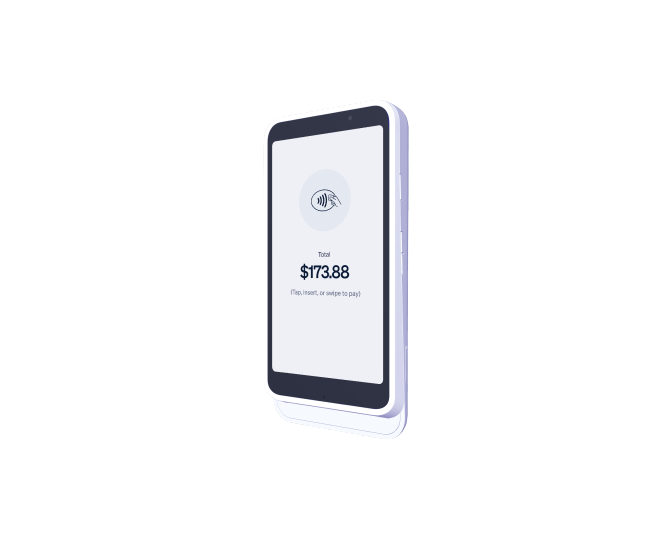
Stripe Reader S710 payment terminal
02

Stripe Reader S710

Countertop touchscreen · Wi-Fi and cellular

  • Wi-Fi and cellular 4G/LTE connectivity for mobile use
  • Works in the browser register at /pos/
  • Supports chip, contactless, tap-to-pay, and swipe payments
  • Pairs using a three-word code in approximately 10 minutes
  • Automatically reconnects and receives firmware updates
Best for mobile vendors, pop-up events, and table-side service
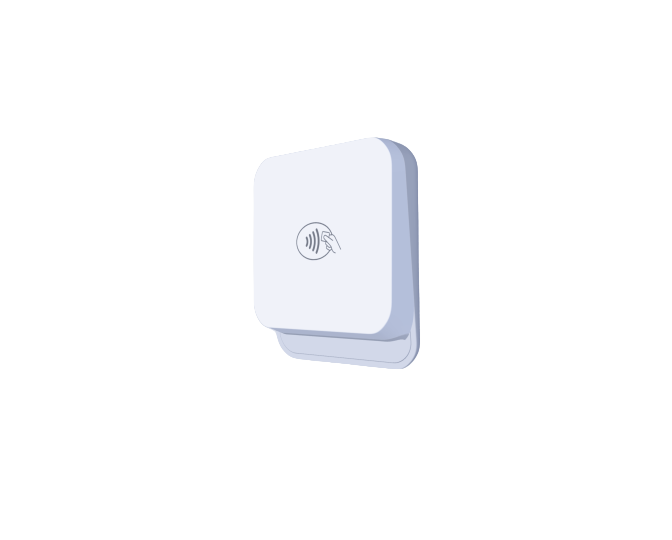
Stripe M2 Bluetooth payment reader
03

Stripe M2

Pocket Bluetooth · mobile app only

  • Bluetooth pairing with no Wi-Fi connection required
  • Works only in the POS mobile app
  • Cannot be used from the browser register
  • Supports chip and contactless payments
  • Requires Bluetooth and location permissions
Best for mobile and pop-up sales
The register itself

Any modern browser. Any modern device.

The Indition POS register lives in a web browser at /pos/. That means any modern computer, Mac, or tablet with an up-to-date browser will run it — no dedicated POS hardware to buy, no software to install.

Windows PC

Chrome, Edge, or Firefox in kiosk / full-screen mode.

Mac

Safari, Chrome, or Firefox — latest version.

iPad / Android tablet

Great for handheld or classroom-side ringing up.

+ USB Barcode Scanner

Strongly recommended. Any HID scanner works.

Register setup

Five steps, about 15 minutes.

  1. 1
    Set up the browser

    Current version of Chrome, Edge, Safari, or Firefox. Run full-screen / kiosk mode. Bookmark the /pos/ URL.

  2. 2
    Sign in

    Cashiers sign in with the same email & password as the Indition back office. On a trusted register, tick “Keep me signed in on this terminal”.

  3. 3
    Connect peripherals

    USB barcode scanner (see the scanner guide), receipt printer & cash drawer, and your card reader (S700 or M2).

  4. 4
    Check the network

    Register and card reader both need internet. If the register briefly drops mid-sale, the payment finishes automatically when it reconnects — nothing is lost.

  5. 5
    Comfort & accessibility

    Text-size buttons and a light/dark toggle in the top bar. Turn off the device’s screen-saver during opening hours so the register stays ready.

One device, one cashier at a time. Each cashier signs in, opens their shift, and signs out (or hands over with a shift close) so sales and the cash drawer stay tied to the right person.
Connect Stripe

Wire up Stripe in seven boxes.

The StripeConnect module handles connected-account creation, hosted onboarding, and webhook lifecycle. Follow the checklist — do it in test mode first, then swap for live keys. Every step tells you what to click and how to know it worked.

STRIPE ACCOUNT & KEYS · TEST MODE FIRST

Phase C — Stripe wire-up

  1. Create a Stripe Terminal Location
  2. Paste tml_… into the store record (M)
  3. Save the Secret key (M)
  4. Save the Publishable key (M)
  5. Create the webhook endpoint
  6. Save the webhook signing secret
  7. Confirm the webhook is reachable
StripeConnect module

The plumbing that keeps it healthy.

The StripeConnect module manages the whole connected-account lifecycle from inside BCC. Create standard connected accounts, attach existing ones to stores, resume onboarding, refresh statuses, and observe every incoming webhook — all without leaving the admin.

Account operations

Create, attach, label, resume onboarding, toggle status, remove connections. Grid rows refresh from the Stripe API on demand.

Hosted onboarding

Support return & refresh flows from Stripe onboarding. Surface status. Track review/acceptance signals for follow-up.

Webhook lifecycle

Ensures the endpoint exists, updates on drift, deletes duplicates, persists signing secret per test/live mode.

Signature verification

Every incoming webhook is verified against the stored signing secret. Invalid payloads get an HTTP 400 — spoofing mitigated.

Audit log grid

Every event logged. Filter by mode/event/date, open a detail modal, delete stale rows. Compliance-ready diagnostics.

Hardware setup

Reader + register: 10 minutes each.

Every certified reader connects to BCC the same way — power it on, join Wi-Fi, generate a 3-word pairing code, add it in the admin, run a $1 test sale. The M2 substitutes Bluetooth for Wi-Fi and the mobile app for the browser register, but the pattern is the same.

1

Power on

Plug the USB-C cable into the reader’s left side and the included power brick. Hold the power button until the screen lights up (~30 seconds first boot).

2

Join Wi-Fi

Swipe from the left, tap Settings, enter passcode 07139, pick your store Wi-Fi. Wait for the top bar to say Online.

Avoid guest / captive-portal networks
3

Pairing code

Tap Generate pairing code. Three words appear (e.g. apple-pear-mango). They expire in ~30 seconds — be ready.

4

Add in Indition

In the admin, go to POS → Card Readers → + Add new. Choose the store, name the reader, type the 3-word code, tick Set as default, save. Reader shows a green Active badge.

5

Test $1 sale

In /pos/, add a $1 item to the cart, hit Card → Charge, tap/insert/swipe on the reader. When Approved appears, refund it under Recent Sales.

If something goes sideways

Reader never shows “Online”

Check the store Wi-Fi reaches where the reader sits; power-cycle if it stays on “Connecting.” Avoid guest Wi-Fi.

“Pairing code expired”

The code lasts ~30 seconds. Tap Generate pairing code again and save right away.

Active in admin but register can’t reach it

Reload /pos/. Confirm the reader is ticked as default under POS → Card Readers.

“No Location” / “Setup incomplete”

The store record is missing its Stripe Terminal Location. Contact Indition support — one-time fix on our side.

Sale finishes on reader, register doesn’t move

Check the register’s internet. The pending sale resolves as soon as it reconnects — nothing is lost.

Screen goes dark

Reader sleeps after idle. Short press of the power button wakes it; it reconnects to Wi-Fi automatically.

Go-live checklist

Ten phases. Zero surprises.

Every BCC POS launch walks through the same 10-phase checklist — from software install to first-30-days monitoring. Do everything in Stripe test mode first, switch to live keys, re-test, then sign off. Five launch-blockers must pass before real money flows.

LAUNCH-BLOCKERS

Five things that must pass before live money.

  1. StripeTerminal installed & webhook endpoint live, delivering 200 OK.
  2. Real card reader paired against test mode and a full test sale end-to-end.
  3. One live $1 sale + immediate refund on a production-paired reader.
  4. Webhook signing-secret rotation procedure known and recorded.
  5. Store flagged Is POS Location with correct live Stripe Terminal Location ID.
A

Software install & enable

POS + StripeTerminal modules installed, webhook endpoint live, POS master switch on, payment methods and fees confirmed.

B

Store & staff

Store flagged Is POS Location. Each employee assigned Cashier / Manager / Admin. No-role users blocked from the register.

C

Stripe account & keys

Terminal Location created, keys saved (test mode first), webhook endpoint added with 6 events, signing secret verified.

D

Card reader hardware

Reader powered, on Wi-Fi, paired with a 3-word code, set as default, and the register successfully connects to it.

E

Cash drawer & receipt printer

Drawer agent responds; drawer-kick enabled; receipt printer default with paper; test print shows correct branding.

F

Register computer

Up-to-date browser in kiosk mode. Barcode scanner works. Reliable network for register + reader. Bookmarked /pos/.

G

Functional test sales

Open shift, cash sale, card sale, card fee, tax, discount, tip, split, save card, serialized, fractional, oversell, hold/recall, refund, exchange, voids, cash movements, close shift (Z report).

H

Reports & data checks

Test sale in Recent Sales; webhook deliveries 200 OK; Sessions / Cash Movements / Daily Summary / Sales Analytics all populate; clean up test data.

I

Switch to live & final test

Live Terminal Location + live webhook. Replace test keys with sk_live_…, pk_live_…, live whsec_…. Re-pair reader against live keys. Live $1 sale + immediate refund. Record webhook-secret rotation steps.

J

First 30 days

Monitor webhook delivery (alert on >1% failure). Reconcile Z reports vs deposits daily. Spot-check refunds. Train staff on refunds, exchanges, end-of-day.

PRODUCTION SIGN-OFF

Three signatures. One green light.

When every phase and every launch-blocker has passed, the installer / technician, the store manager, and the owner all sign the go-live sheet. That’s the moment the register is approved to take live payments.

Installer / technician
Store manager
Owner / approver

Frequently Asked Questions

Which reader should I pick if I’m only running one store?

The Stripe Reader S700 is the sweet spot for most BERNINA dealers — touchscreen, Wi-Fi, works in the browser register at /pos/, sets up in about 10 minutes with a 3-word pairing code. Pick WisePOS E if counter space is tight or you want a more handheld feel. Save the M2 for when you need pocket-sized Bluetooth for pop-ups or trunk shows — but remember the M2 only works in the mobile app, not the browser register.

Can I run POS on an iPad?

Yes. The register is a web page at /pos/, so anything with a modern browser works — iPad, Android tablet, Windows PC, Mac. A USB barcode scanner still connects (via Lightning-to-USB or USB-C adapter on iPad). If you’re on iPad with an M2 Bluetooth reader, you’d use the Indition POS mobile app instead, since browsers can’t talk to Bluetooth card readers.

What if the reader is offline for a minute mid-sale?

If the register briefly drops during a card sale, the sale finishes automatically once it reconnects — nothing is lost. If the reader is offline, it can’t start a new charge until it’s back on Wi-Fi. In practice, the most common cause of both is a guest Wi-Fi network with a sign-in page (readers can’t clear those). Use the store’s main network.

What’s the simulated reader?

Stripe can enable a simulated reader for your account so you can run the full go-live test sale flow without a physical test card. Ask Indition support to switch it on for your account, then pair it as a non-default reader. It behaves exactly like an S700 but you never actually tap or insert anything.

What’s in the audit log?

Every webhook event delivered to your endpoint is stored for diagnostics and compliance. The admin log grid supports filtering by event type, mode, and date; a detail modal shows the full payload; and a delete workflow lets you tidy old records. Combined with Stripe’s own webhook delivery view, you have two independent sources of truth on every event.

Ready to see what BERNINA Commerce Connection looks like for your store?

Book a free 20-minute demo with a BERNINA specialist. We'll show you exactly how BCC works for a store like yours — no generic presentations, no pressure.


*May require add-on modules.